Blog · Trade Cam
How to Record Your Trades With QuantAI Trade Cam
One-click screen recording, built directly into QuantAI — no external software, no manual editing, and a fully rendered video the moment you stop.
August 3, 2026 · 6 min read
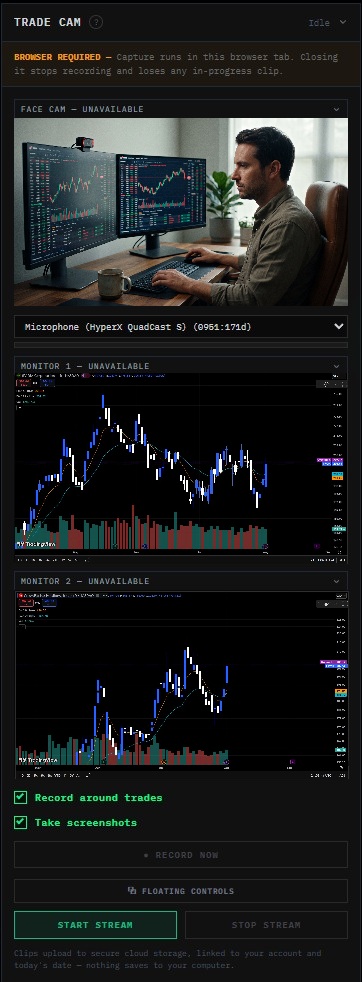
Most traders can tell you what a trade did to their P&L. Far fewer can tell you what they were actually looking at the moment they clicked buy or sell — which watchlist tab was open, what the order book looked like, whether they hesitated. That context disappears the second the trade closes, and it's usually the most useful part of a post-trade review.
Trade Cam solves this by recording your screen automatically while you trade, so you can go back and watch exactly what happened — not just what the chart looked like afterward, but what you saw and did in the moment.
What makes it different
Screen recording tools aren't new, but they're usually a separate piece of software you have to install, configure, and remember to start before every session. Trade Cam is built directly into QuantAI:
- One click to start. No third-party app, no license key, nothing to install.
- Runs entirely in your browser. It uses your browser's built-in screen-sharing API — the same permission prompt you'd see sharing your screen on a video call.
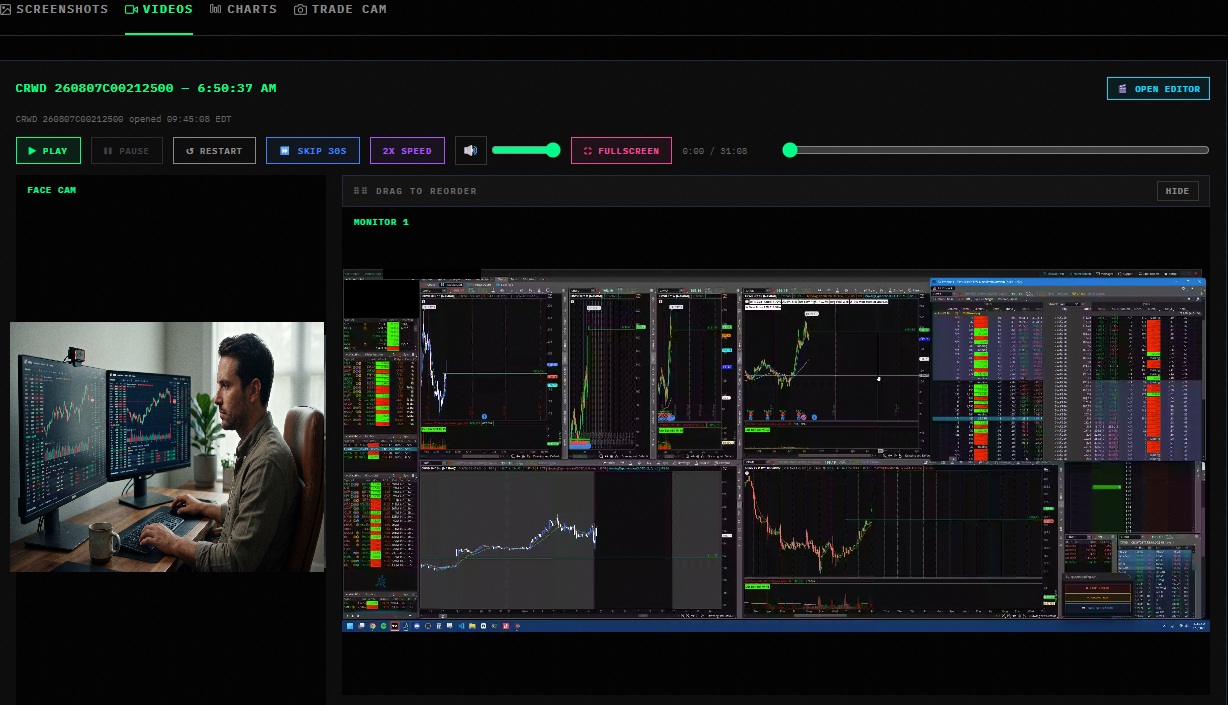
- Optional face cam. Turn on your webcam to capture a picture-in-picture recording of yourself alongside your screen — useful for catching your own reactions in the moment.
- Fully rendered automatically. When you stop recording, QuantAI combines and renders the final video for you — no export step, no waiting on a separate editing tool.
Step by step: recording your first trade
Open the Trade Cam widget
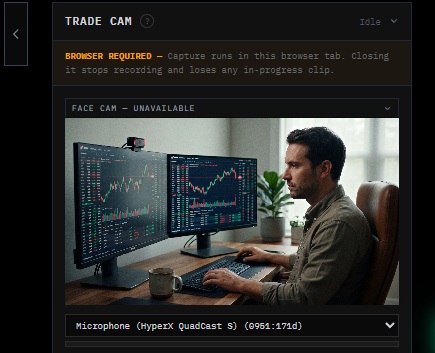
Click Start Recording
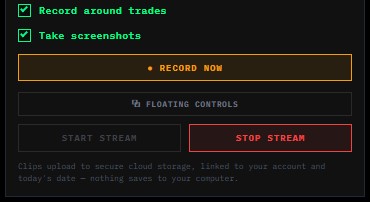
Trade normally
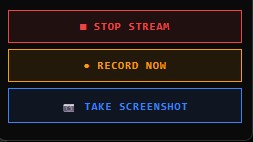
One thing to know: Record around trades — the automatic start/stop when you open and close a position — currently only works with a connected Charles Schwab account, since it relies on your live position data. Trading through another broker? Trade Cam still records and renders the video the same way — just use Record Now or Start Stream yourself instead of relying on auto-detection.
Click Stop when you're done
Your video renders automatically
Watch it back instantly
Why it's worth doing
The best trading journals aren't just numbers — they're context. A P&L figure tells you what happened; a recording tells you why. Watching yourself hesitate on an entry, chase a breakout, or exit too early is a far more direct way to catch a pattern than trying to reconstruct it from memory hours (or days) later.
Because Trade Cam requires no setup and renders automatically, the friction that normally stops traders from recording their sessions — installing software, configuring it correctly, remembering to export the file — is gone.
Ready to start recording your trades?
Trade Cam is available on every QuantAI plan.
View Plans & Pricing