Blog · Vest Markets
One-Click Trade Importing From Vest Markets
Vest Markets has no API and no sync button — but your trade history is still yours. Click one button in QuantAI, sign in to Vest once, and every account you own, evaluation, funded and closed, lands in your journal with funding, fees and account type already worked out.
October 15, 2026 · 7 min read
Why Vest needed something different
Most brokers let QuantAI sync over an API. Vest Markets doesn't offer one for reading your trades, and what it does offer — an Export CSV button — is more awkward than it looks. The file is a list of order fills, not trades, with no P&L column. It only covers the one account you currently have selected. And the accounts that matter most to a prop trader — the evaluations you failed or passed — are tucked away behind a "Show Closed Accounts" link.
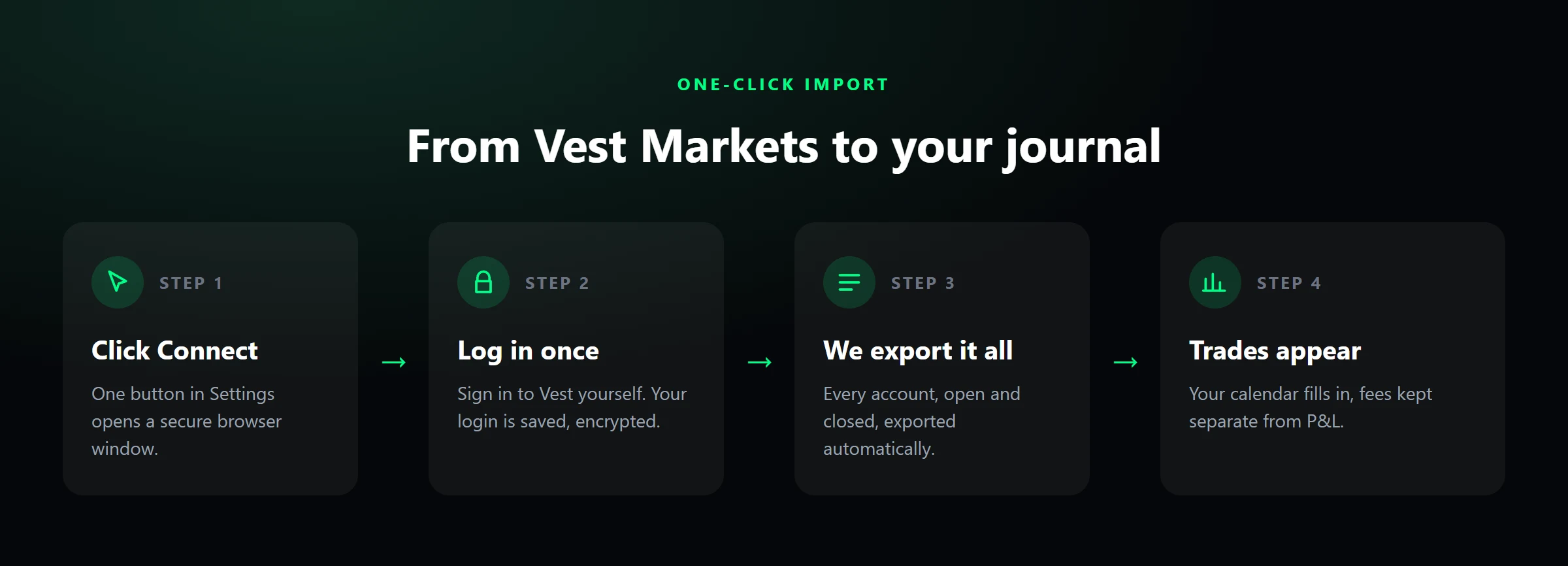
So instead of asking you to click through all of that, QuantAI does it for you in a secure browser window: it opens Vest, waits while you sign in, then goes account by account, exports each history, and turns the fills back into trades. You see a button; it does the legwork.
How to do it
It takes about a minute, and everything after the first login is a single click.
1Open Settings → Prop Firms → Vest Markets
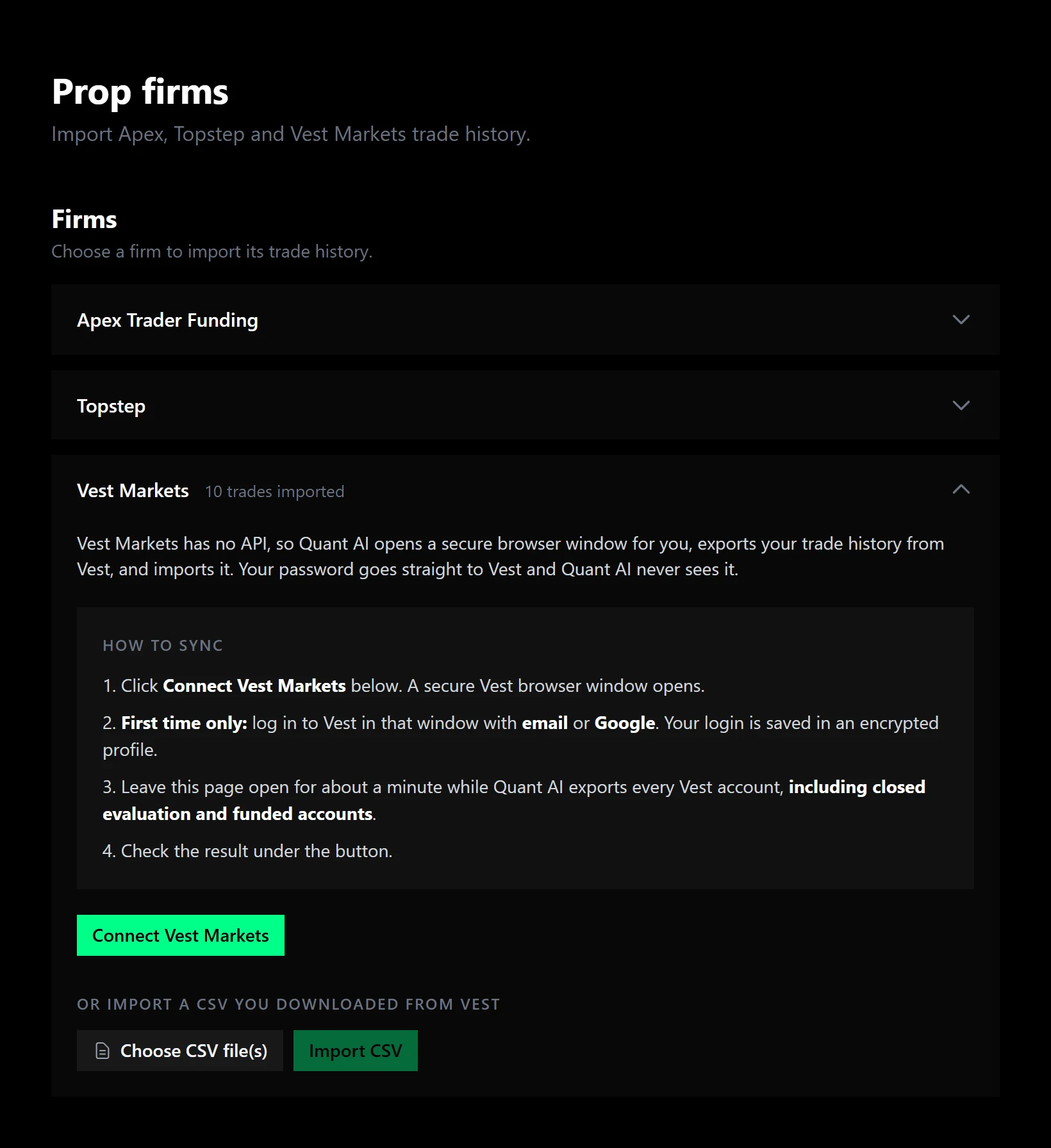
In QuantAI, go to Settings, open Prop Firms, and expand the Vest Markets card. The steps are written right there, with a green Connect Vest Markets button underneath. (Once you've connected, it reads Sync Vest Markets.)
2Click Connect — a secure browser window opens
A pop-out window opens on Vest's sign-in page. It's a real browser running in a secure session, and your own Vest login happens inside it — so your password goes straight to Vest. QuantAI never sees it.
3Log in — the first time only
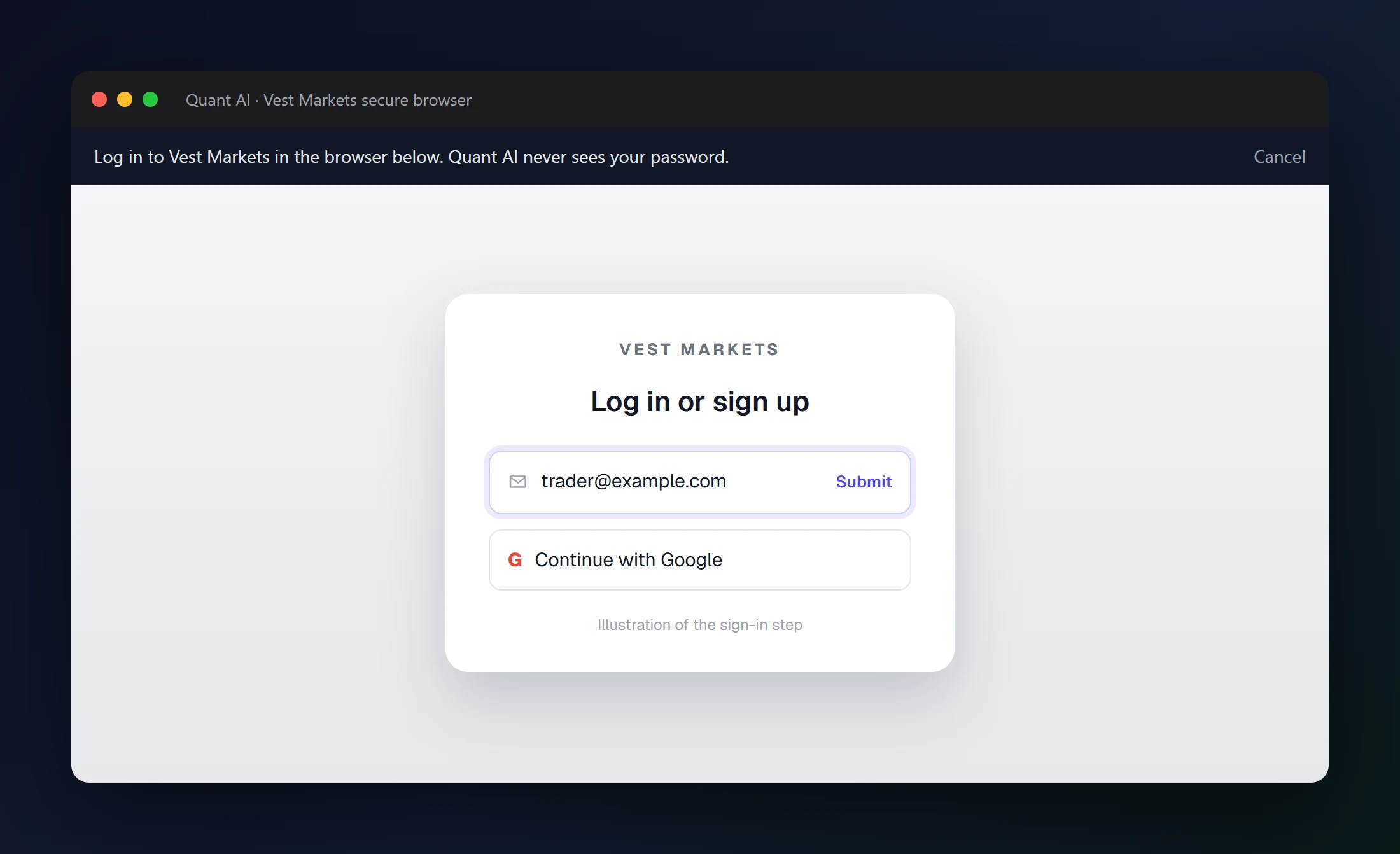
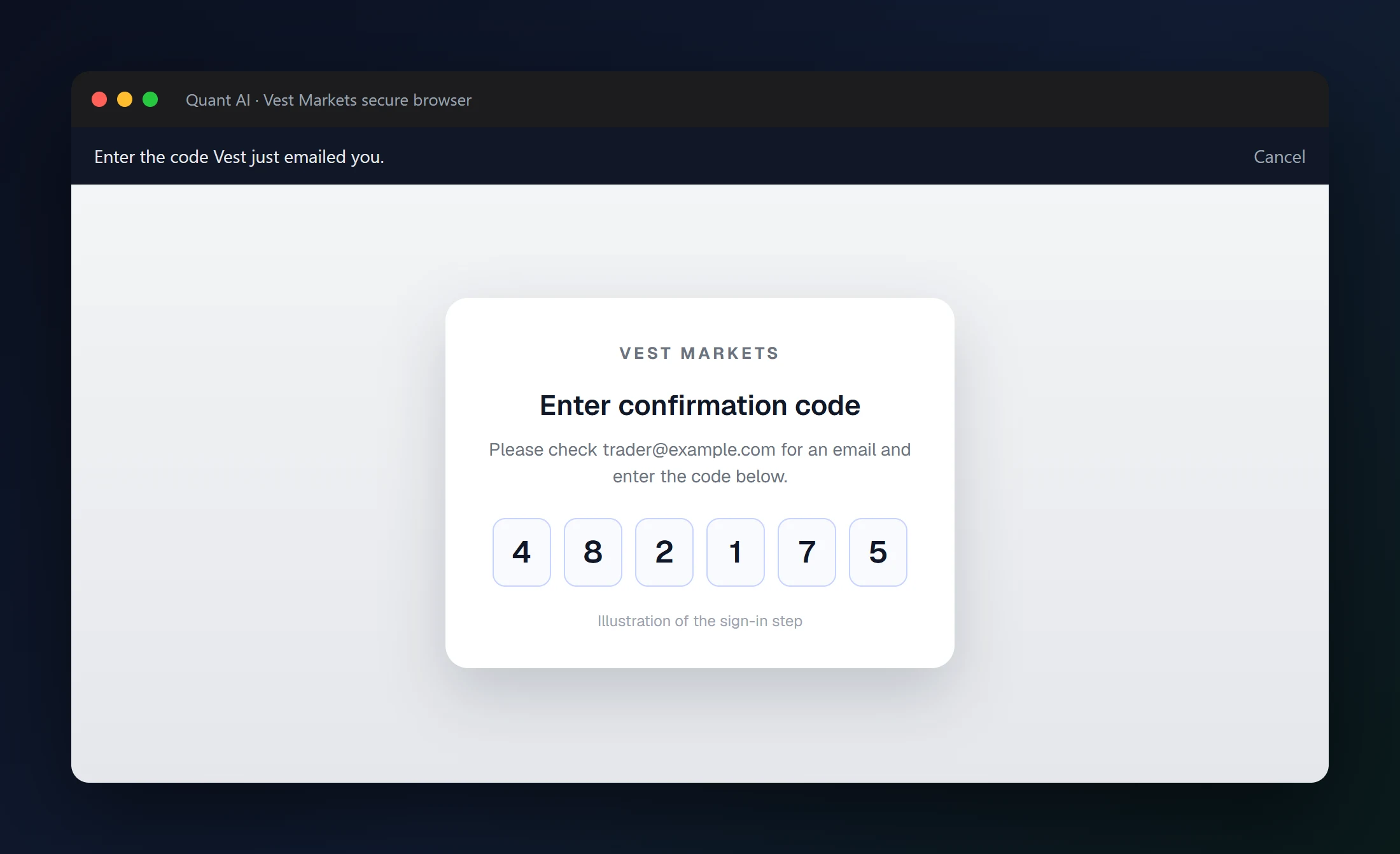
Sign in with your email (Vest emails you a one-time code) or with Google. After that, your session is saved in an encrypted browser profile, so later syncs skip this step entirely — the window opens, sees you're already logged in, and gets straight to work.
4Let it work
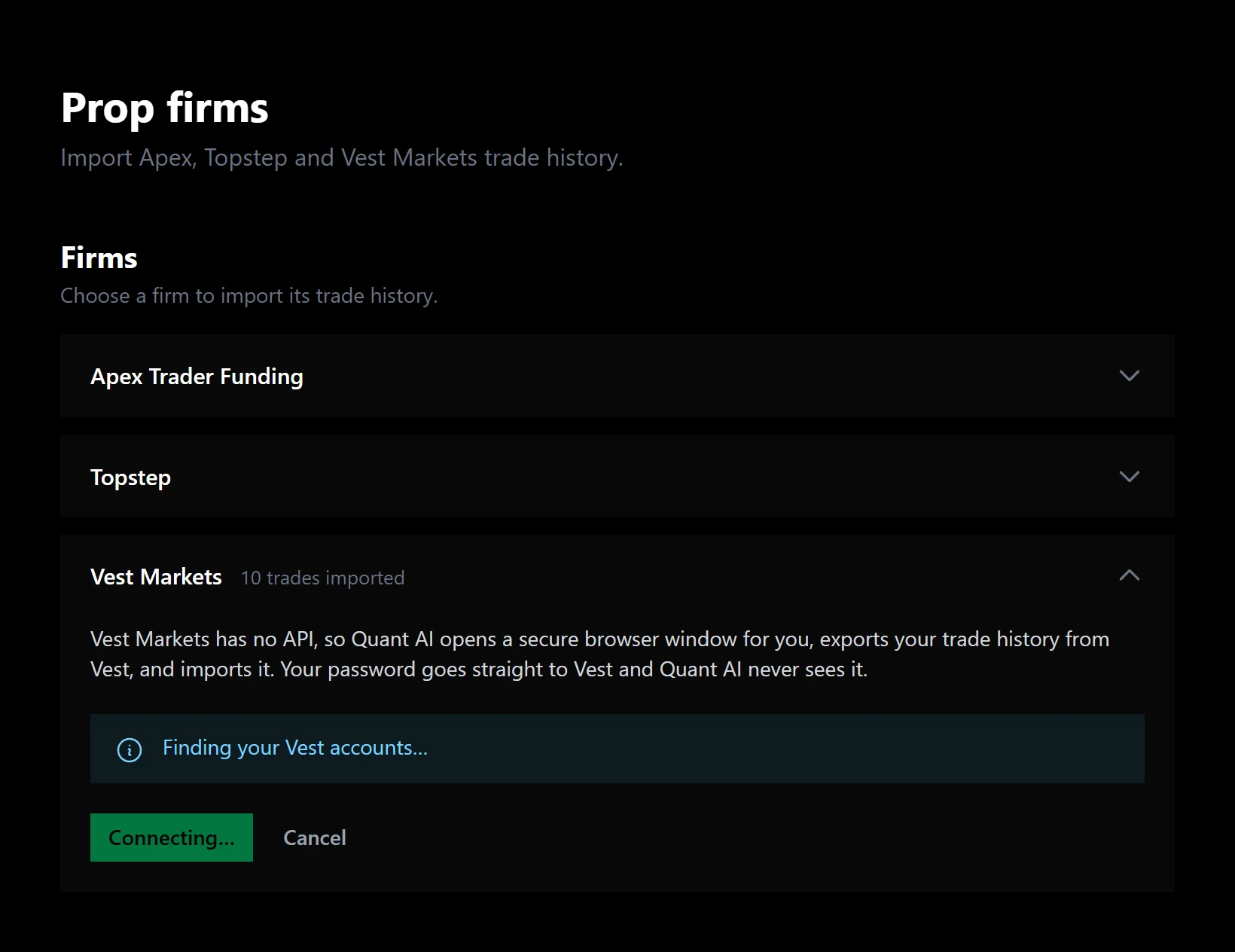
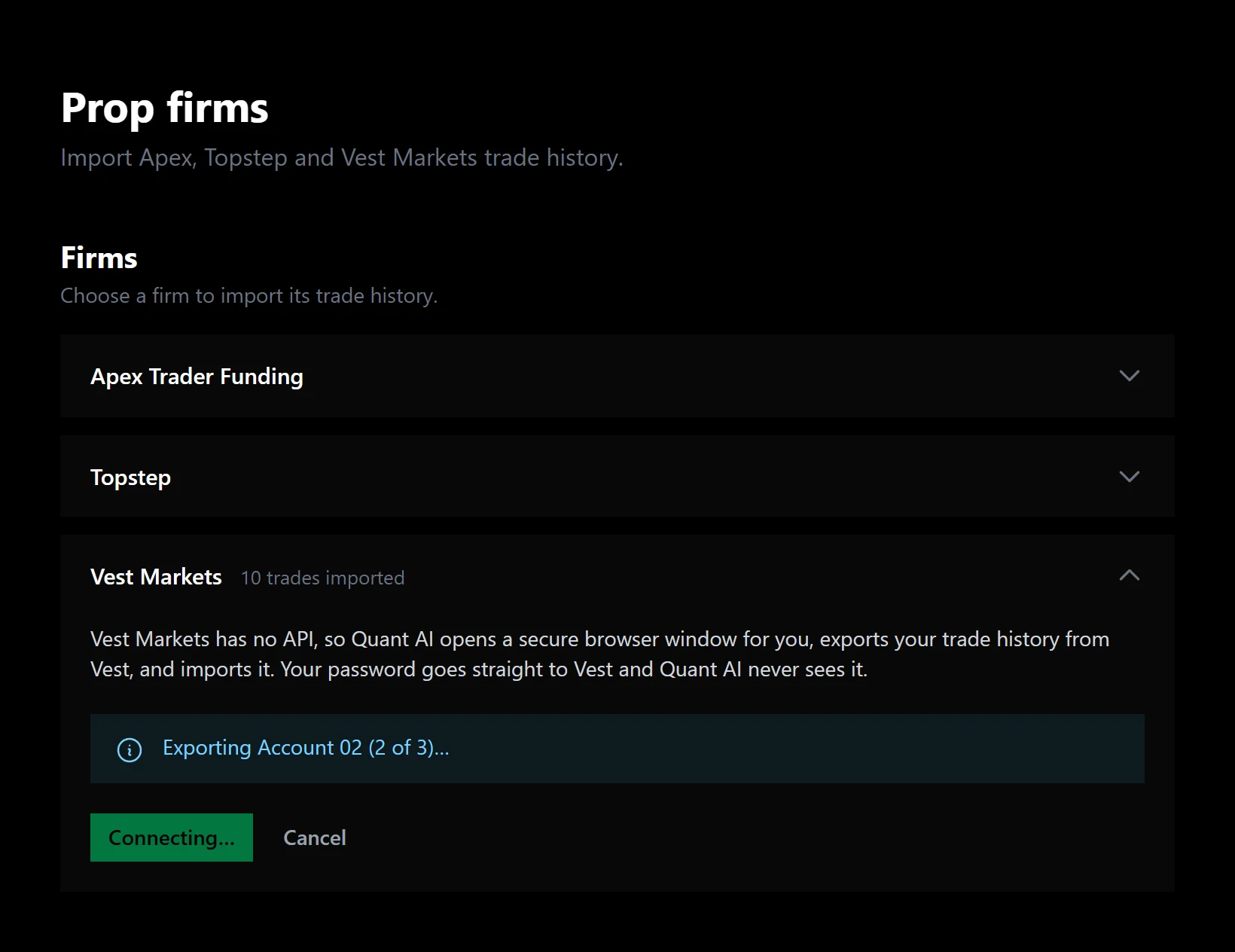
Once you're in, QuantAI takes over. It finds every Vest account you have — your main account plus evaluation, funded and closed accounts — and the card shows exactly where it is. Leave the Settings page open; you can Cancel at any time.
5Check the result
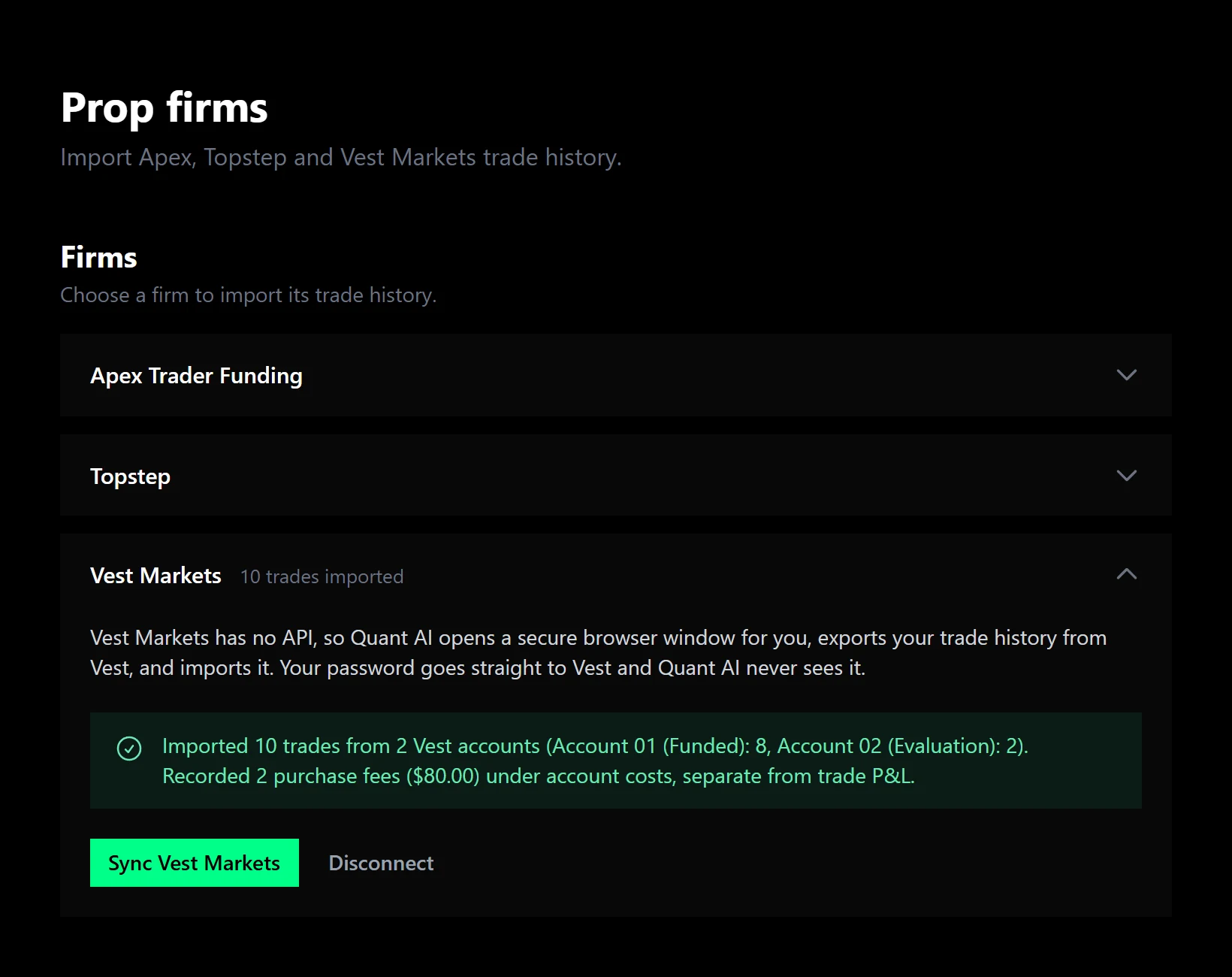
When it finishes, the window closes on its own and the card summarizes what happened: how many trades were imported from which accounts, which were evaluation and which funded, and any evaluation fees it recorded. The button turns into Sync Vest Markets for next time.
What gets imported
Every account
Your main account, evaluation accounts and funded accounts — including closed ones that Vest hides behind "Show Closed Accounts". One sync walks all of them.
Real trades, not raw orders
Vest exports individual order fills. QuantAI nets them the way a broker does — adds, partial closes and long-to-short flips included — so each closed position becomes one trade with Vest's own P&L.
Evaluation or Funded
Each trade is tagged with whether its account was an evaluation or a funded account, read straight from Vest's account data.
Funding payments
Perpetual funding paid or received is included in each trade's P&L, so the number on your calendar is what the position really made or cost.
Evaluation fees, kept apart
What you paid to buy each evaluation is recorded as an account cost — separate from trade P&L, never mixed in unless you choose to.
Safe to repeat
Run it as often as you like. New trades are added, existing ones are refreshed, and nothing is ever duplicated.
One detail worth knowing: trading days follow Pacific time, like the rest of QuantAI's calendar. Vest trades around the clock, so a position that closes at 11 PM Pacific lands on that day, not the next.
What you see on your dashboard
Evaluation fees beside your P&L
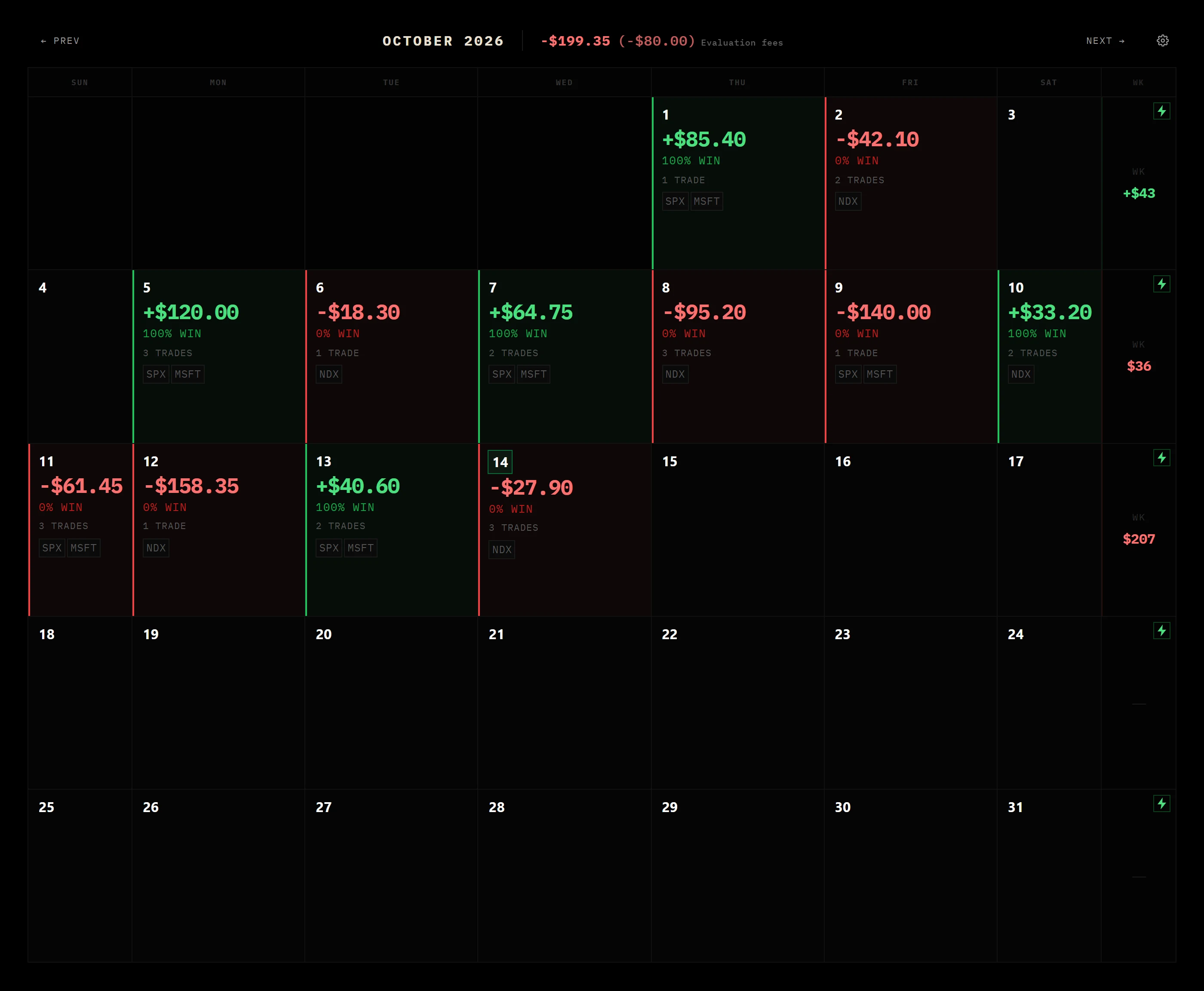
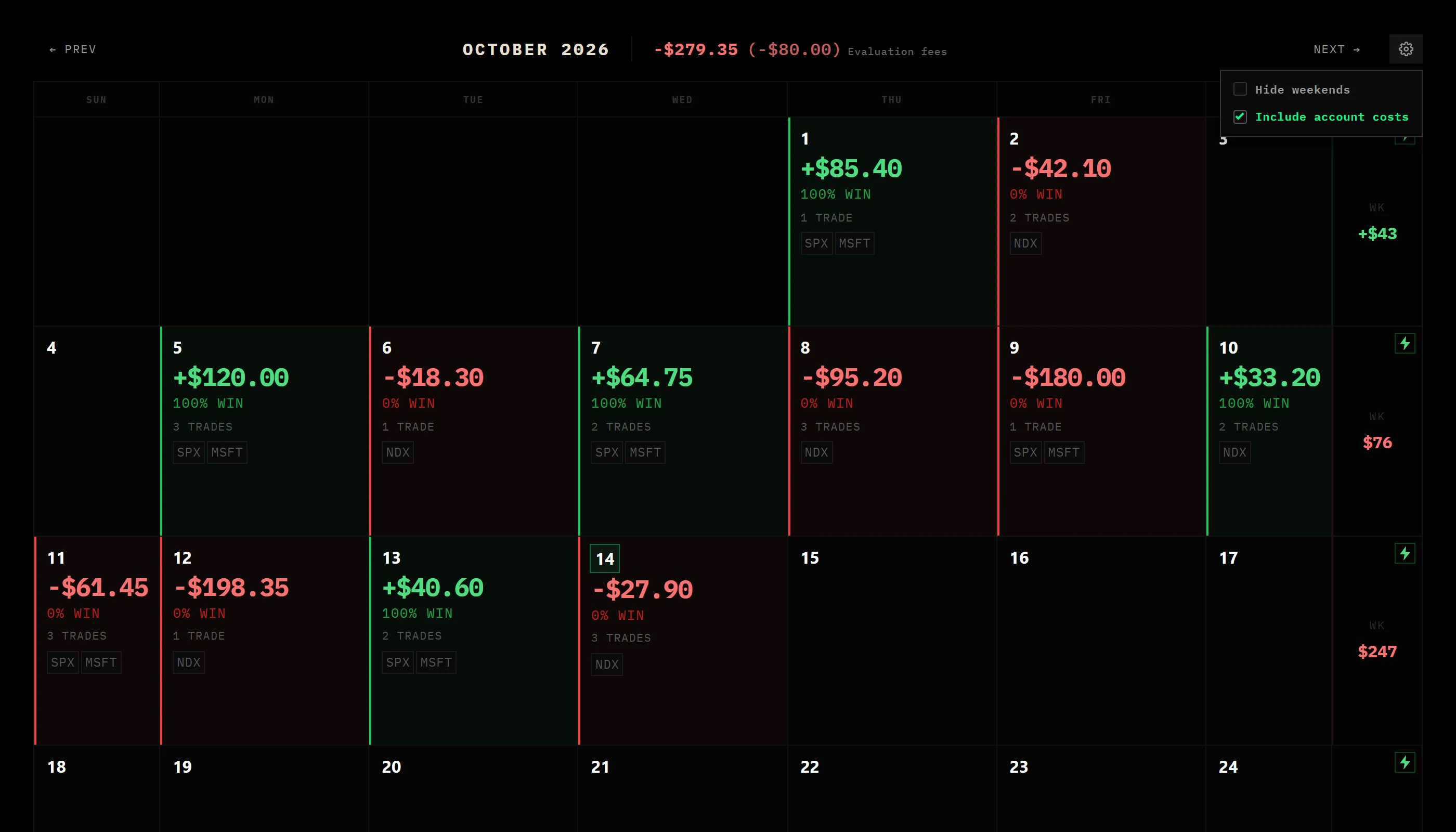
On an evaluation account the trading is simulated — the only real money you can lose is the fee. So the month's evaluation fees sit in parentheses right next to the monthly total on your calendar, always visible, and your daily P&L stays purely what your trades did.
Want the fees inside your totals?
Open the gear in the calendar header — the same menu as Hide weekends — and switch on Include account costs. The day each fee was paid, and the week and month totals, now subtract it. It's off by default so your trade results stay clean.
Prop firms vs your brokerage
Already journaling a Schwab account? The dashboard's broker filter groups your accounts into Brokerage and Prop firms automatically, each with an onlyshortcut, so prop trades never blur into your live trading.

Your login and your privacy
- Your password never reaches QuantAI. You type it into Vest's own page inside the secure browser.
- One saved login, encrypted. It lives in a browser profile tied to your account so you only sign in once.
- Nothing is recorded. The secure session has screen recording and logging turned off, so your sign-in is never stored as a replay.
- You can remove it any time. Disconnect in the Vest card deletes the saved login; trades you already imported stay.
- It closes itself. The browser shuts down as soon as the sync ends, and a sync that's abandoned is cleaned up automatically.
Questions people ask
How long does it take?
About a minute for a typical account. Each Vest account takes roughly 15–25 seconds, so more accounts means a little longer. Keep the Settings page open while it runs.
Can it place, close or move anything on my Vest account?
No. It only reads and exports. The automation is built to click navigation and the export control and nothing else — it is explicitly blocked from anything that trades, closes positions, deposits, withdraws, buys or upgrades an account.
I sign in to Vest with a wallet or passkey. Will that work?
Not in the secure browser. Email and Google sign-in work. If you only use a wallet or passkey, download your history from Vest yourself and use the CSV import in the same Settings card.
Nothing opened when I clicked Connect.
Allow pop-ups for QuantAI. If the window is blocked or you close it mid-sync, the secure browser shows up on the Settings page itself when it needs you.
Where do the fee amounts come from?
Vest lists each evaluation purchase in your account history, and QuantAI prices it from Vest's public price list for that plan. Vest doesn't expose the amount you actually paid, so if a price changed since you bought, tell us and we can adjust it.
Is QuantAI affiliated with Vest Markets?
No. QuantAI is an independent trade journal. Vest Markets has no public API, which is why this works through a secure browser session you control.
Stop copying prop firm trades by hand
Connect Vest Markets once, then sync your evaluation and funded accounts with a single click.
View Plans & Pricing